
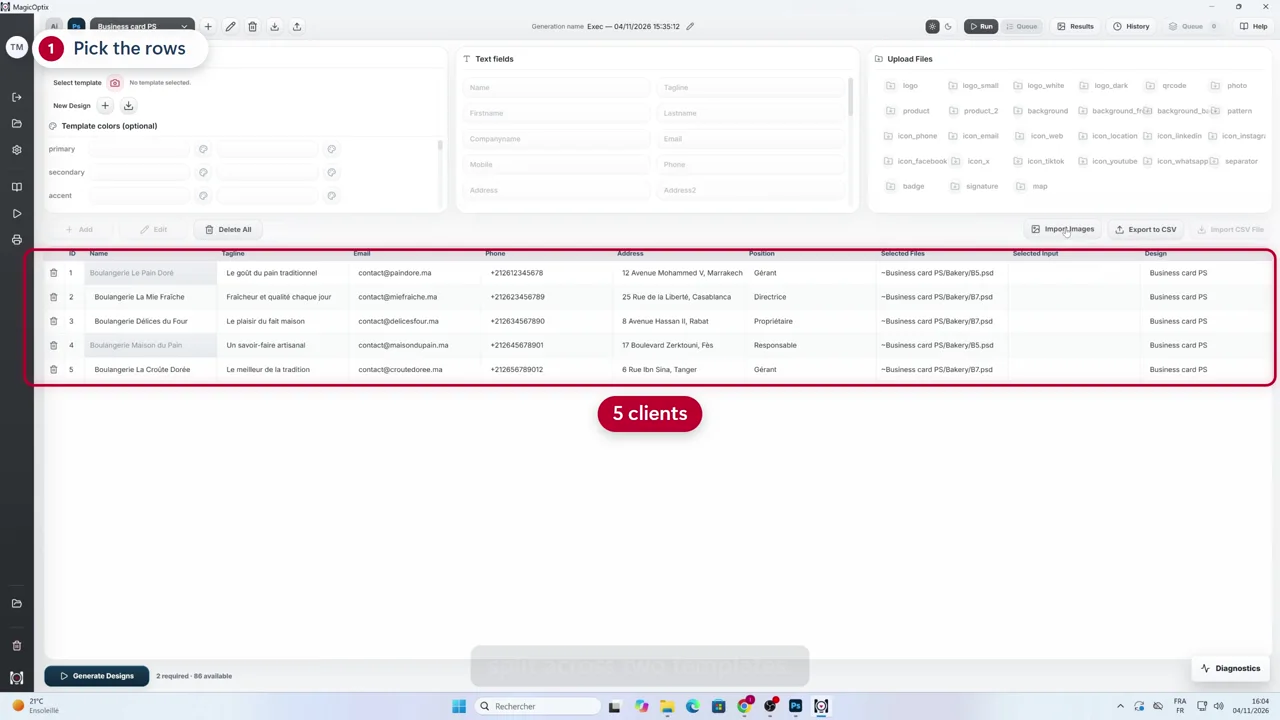
01Choose rows
In the populated table, click Import Images and select the group to fill.
 Enlarge ⤢
02Assign logos
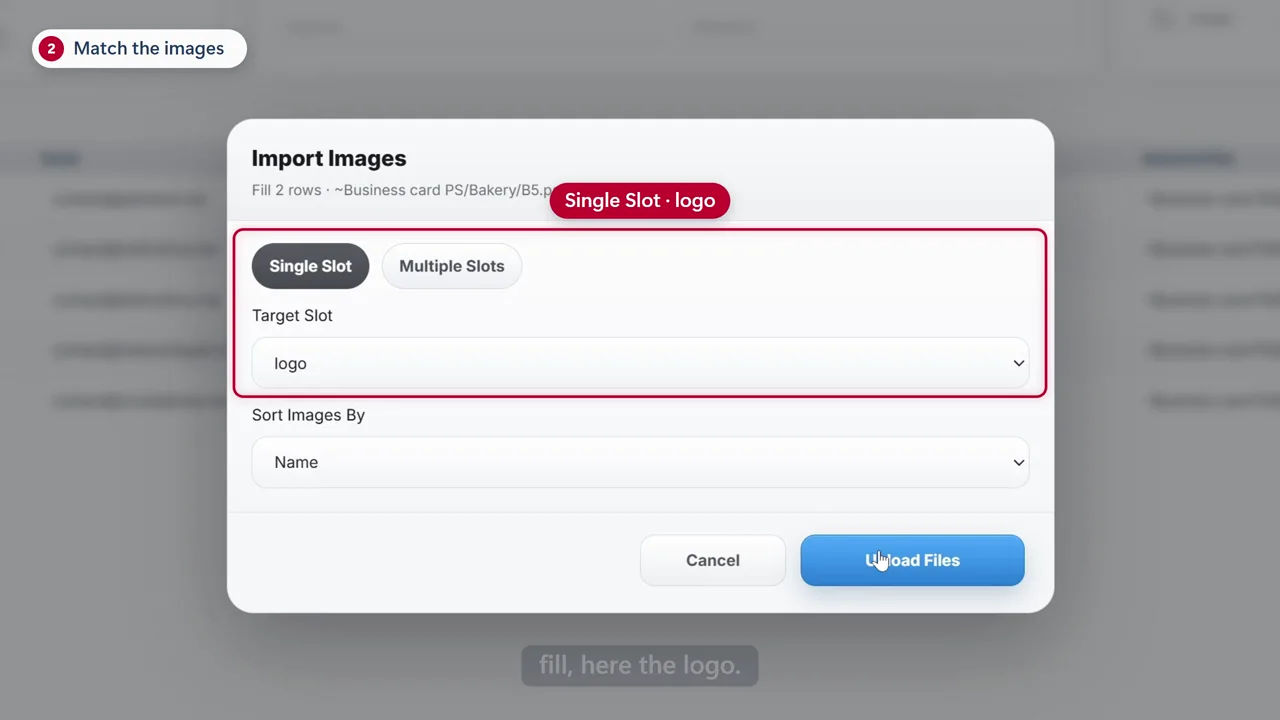
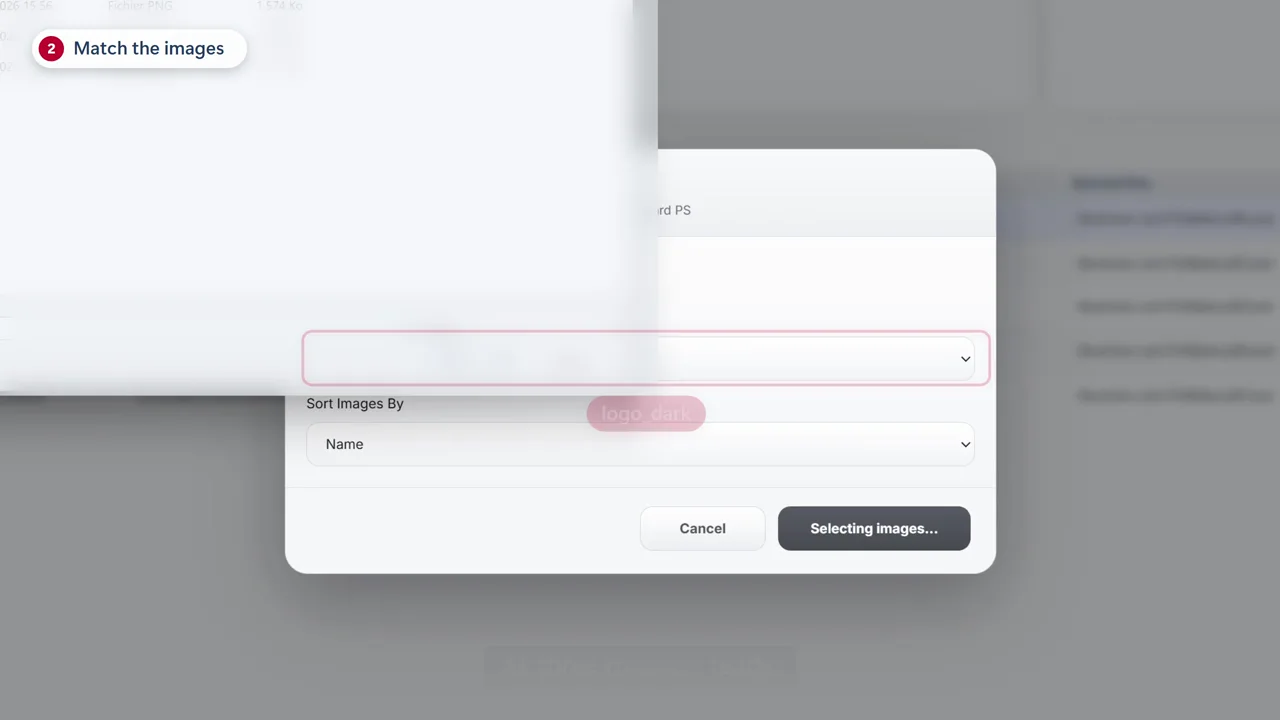
Choose Single Slot and the logo slot. Select images with Upload Files. Under Review photos, open any incomplete row and add its missing image.
- Image slot
- A slot identifies what an image is used for in the template, such as Logo or Portrait. Choosing Logo fills that same slot across several clients, each with their own file.
 Enlarge ⤢
03Apply and verify
Click Import. Repeat for the second group and its logo slot. Generate the cards and check the results.
 Enlarge ⤢