
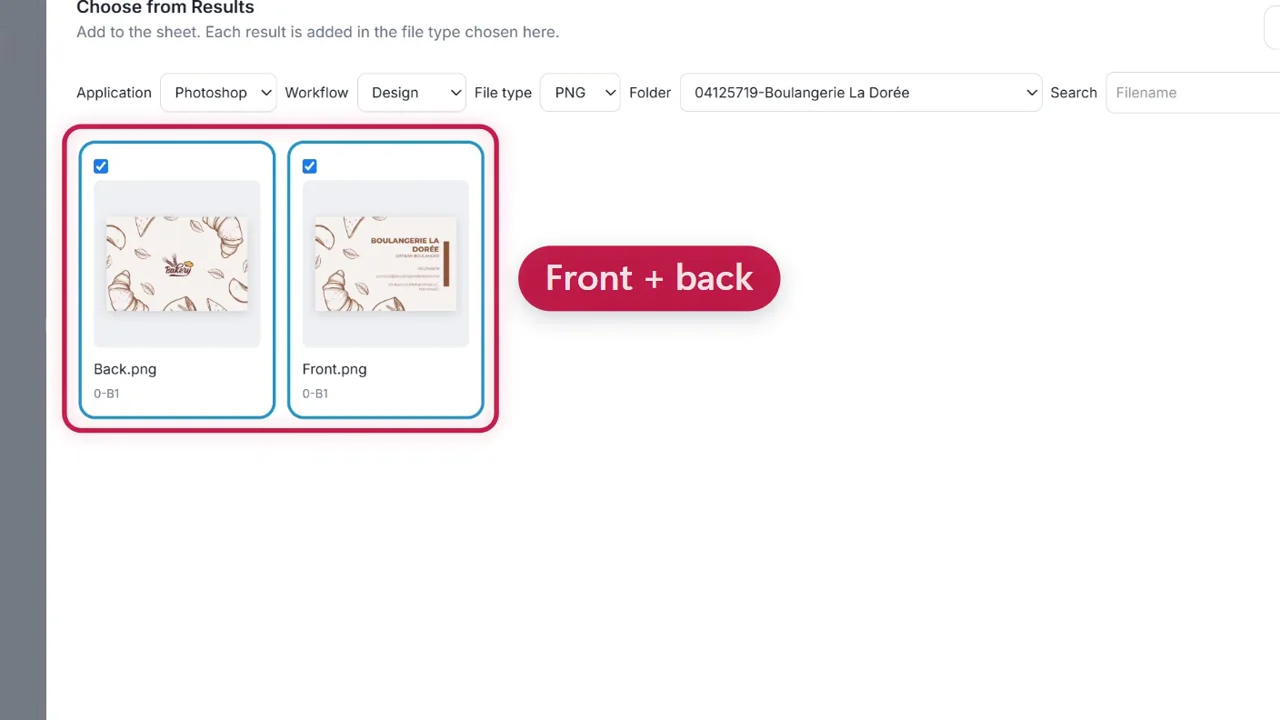
01Add both sides
Open Prepare Print Files and choose From Results. Select the run folder and add both sides to the sheet.
 Enlarge ⤢
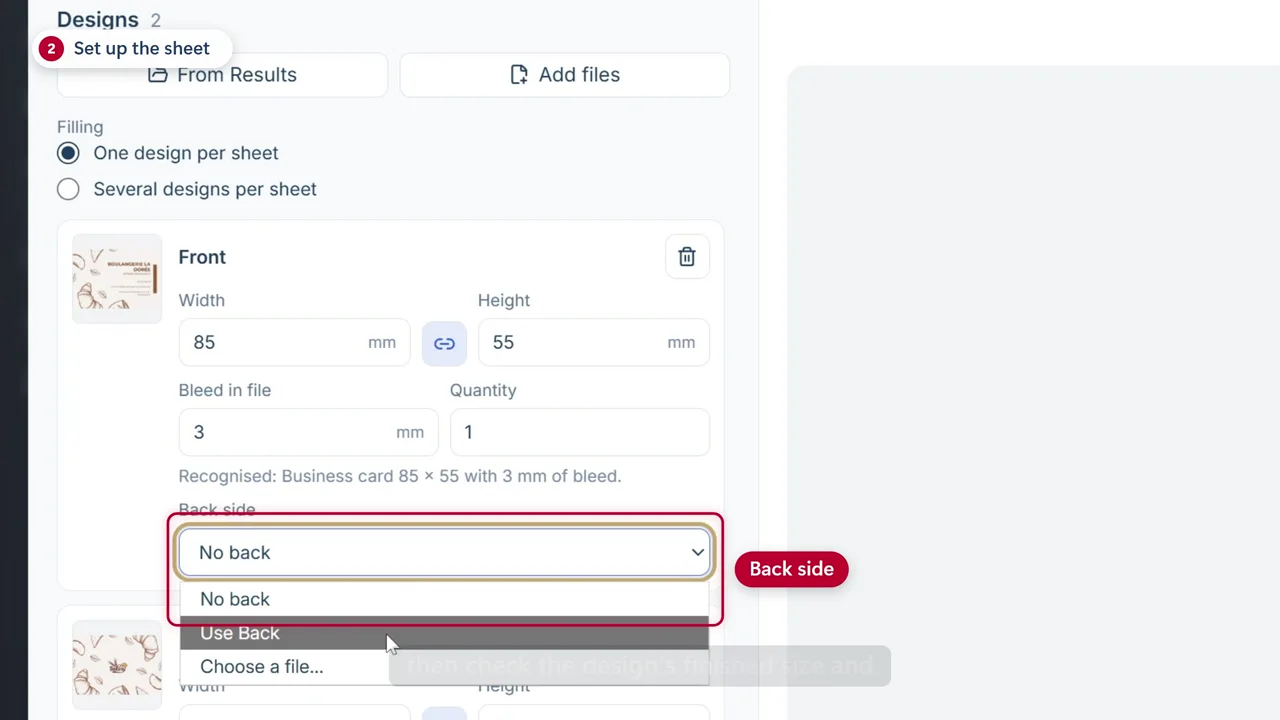
02Set up the sheet
Pair the back with the front and check the finished size and bleed. Inspect the preview and set sheet size, margins, gutters and crop marks.
- Margins and gutters
- A margin leaves room at the edge of the sheet. A gutter separates adjacent cards. After increasing the gutter, check the preview: fewer cards may fit on the sheet.
 Enlarge ⤢
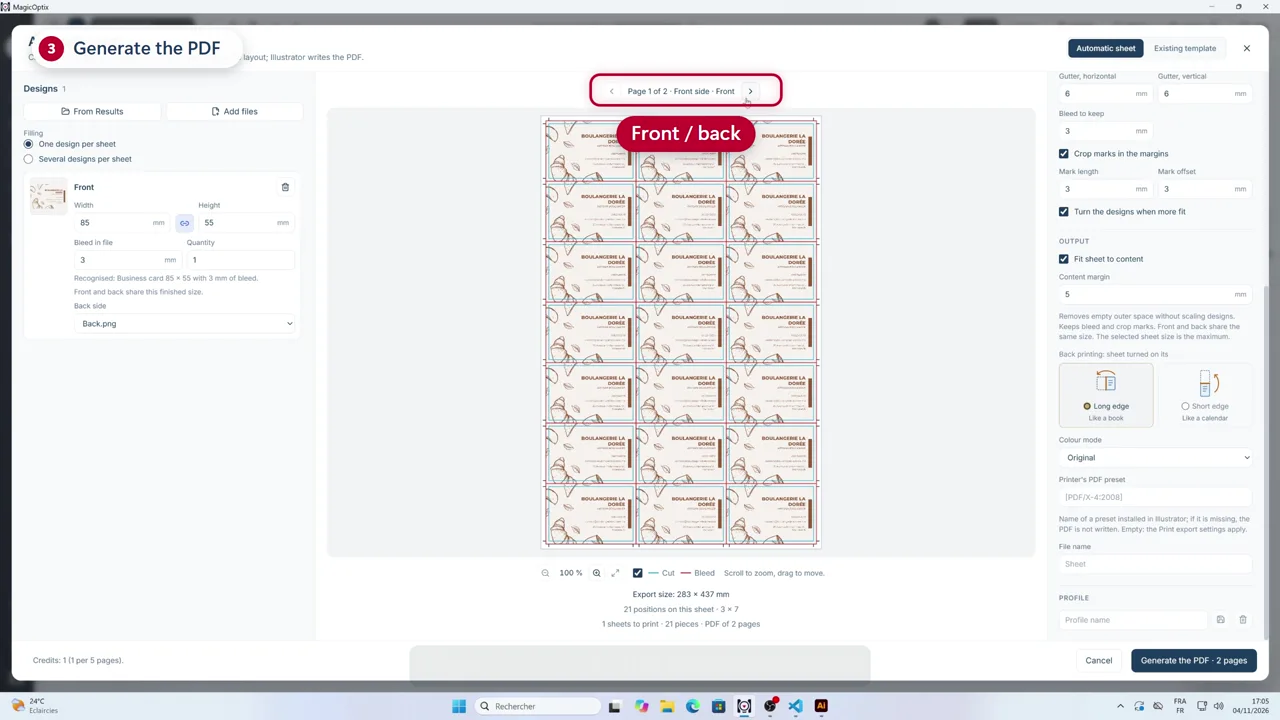
03Export for printing
Check page order and sheet turning, then click Generate the PDF. Inspect the finished sheets in Results and export the PDF.
- Duplex flip
- Choose the edge the sheet turns around for printing the back. On a portrait sheet, flipping on the long edge swaps left and right: the back of a top-left card sits at the top right of the reverse page.
 Enlarge ⤢