
01Choose the PSD
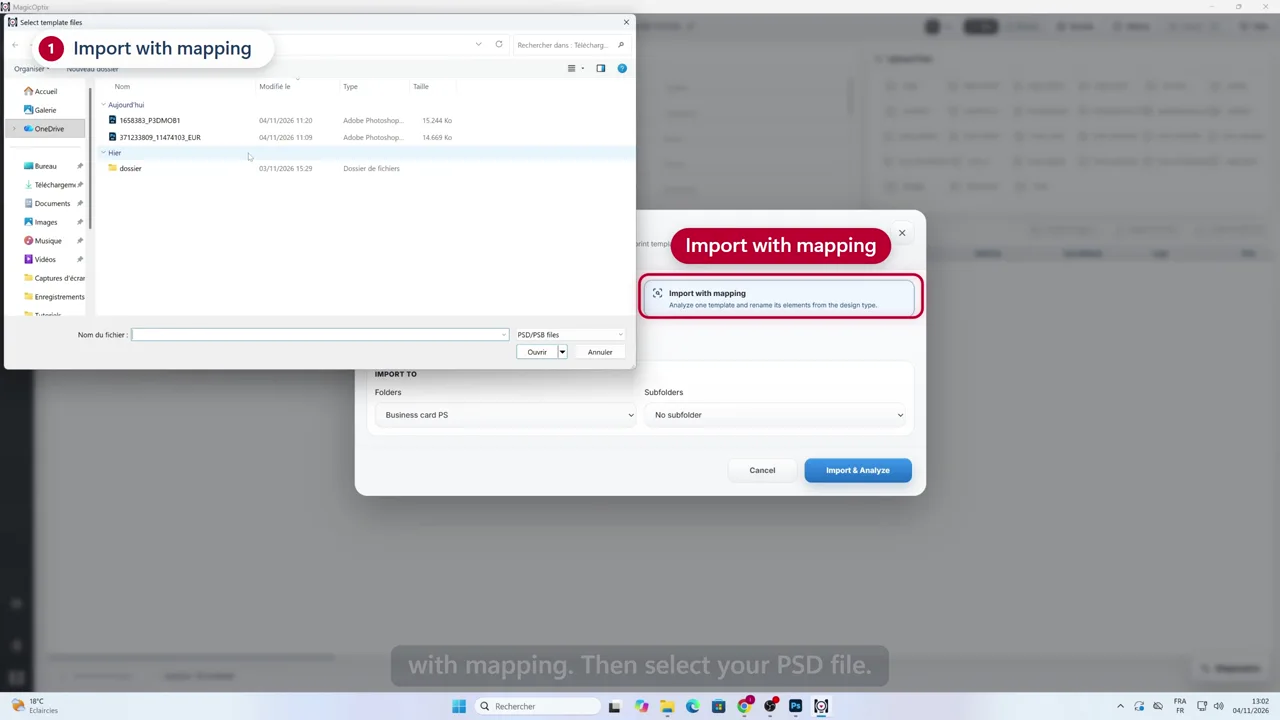
Choose Import with mapping, open the PSD and select a destination folder.
 Enlarge ⤢
02Match fields to layers
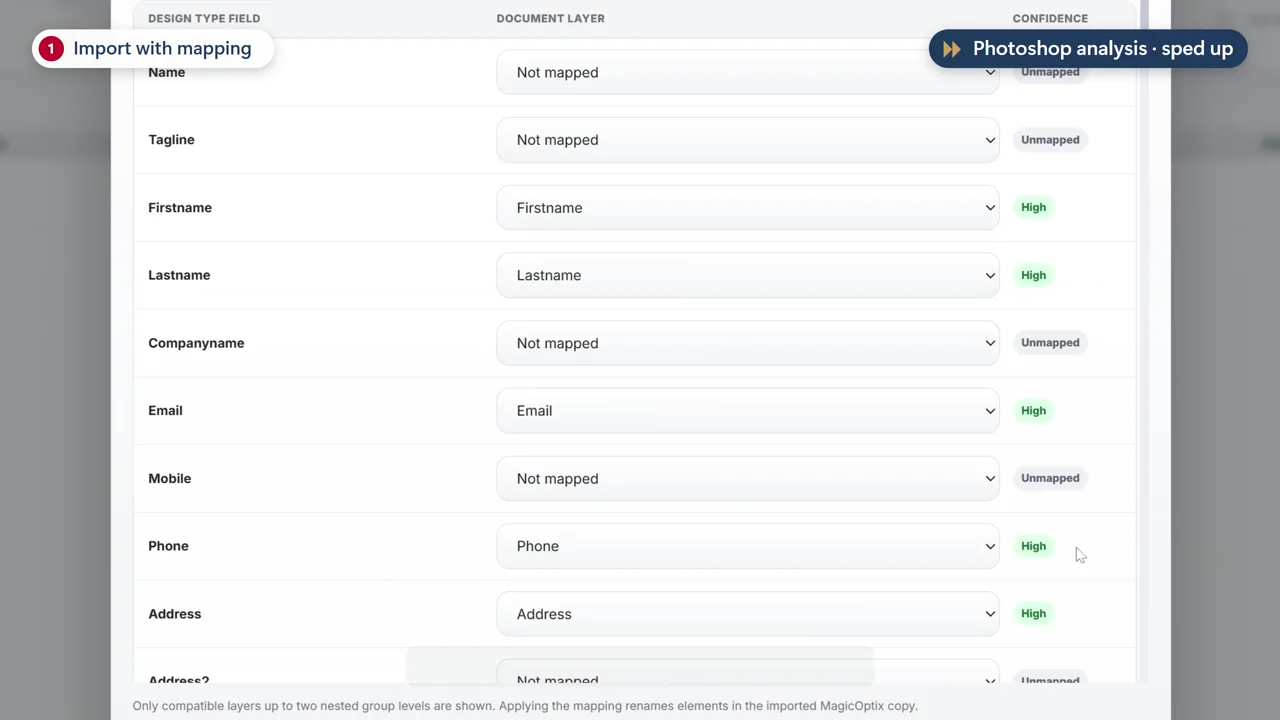
Click Import & Analyze. Review the suggested layer for each field, then click Apply Mapping.
- Layer mapping
- The Logo field tells MagicOptix what to replace. The layer tells it where to put the replacement in the Adobe document. If the logo belongs on the front, check that the suggested layer is on that side.
 Enlarge ⤢
03Enable fields
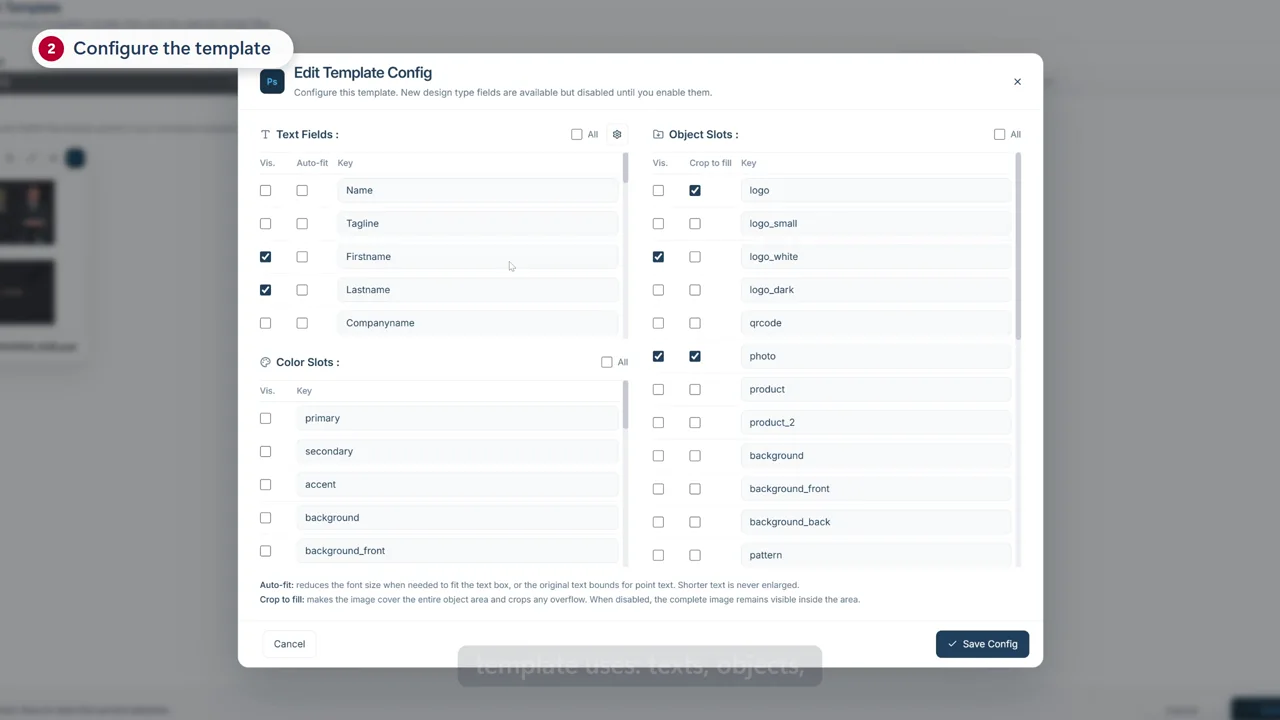
Find the template in its library folder. In Edit Template Config, enable the text, objects and colors it uses, then click Save Config.
 Enlarge ⤢