
01Create a workspace
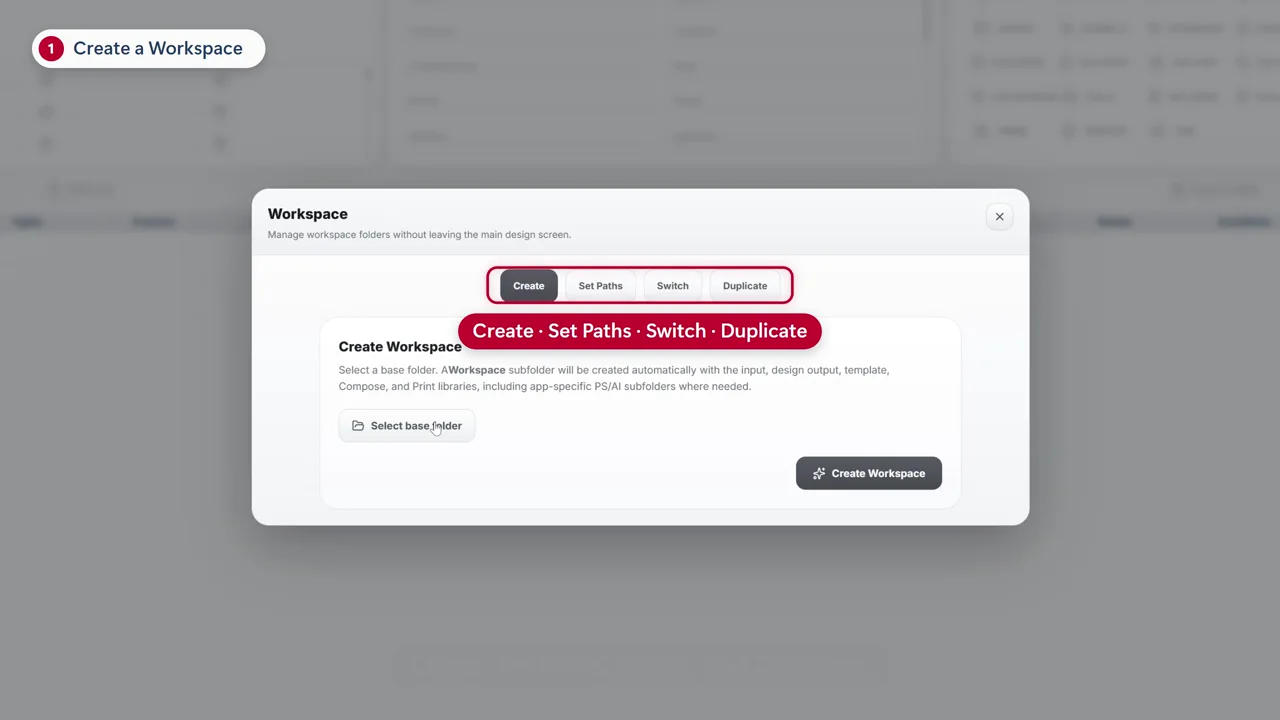
In Workspace Manager, open Create. Use Select base folder to pick the parent folder, then click Create Workspace.
- Workspace
- This is your project folder. It tells MagicOptix where to find templates and where to put results. Choose the parent folder when creating it, then the project folder itself when opening it again.
 Enlarge ⤢
02Check the paths
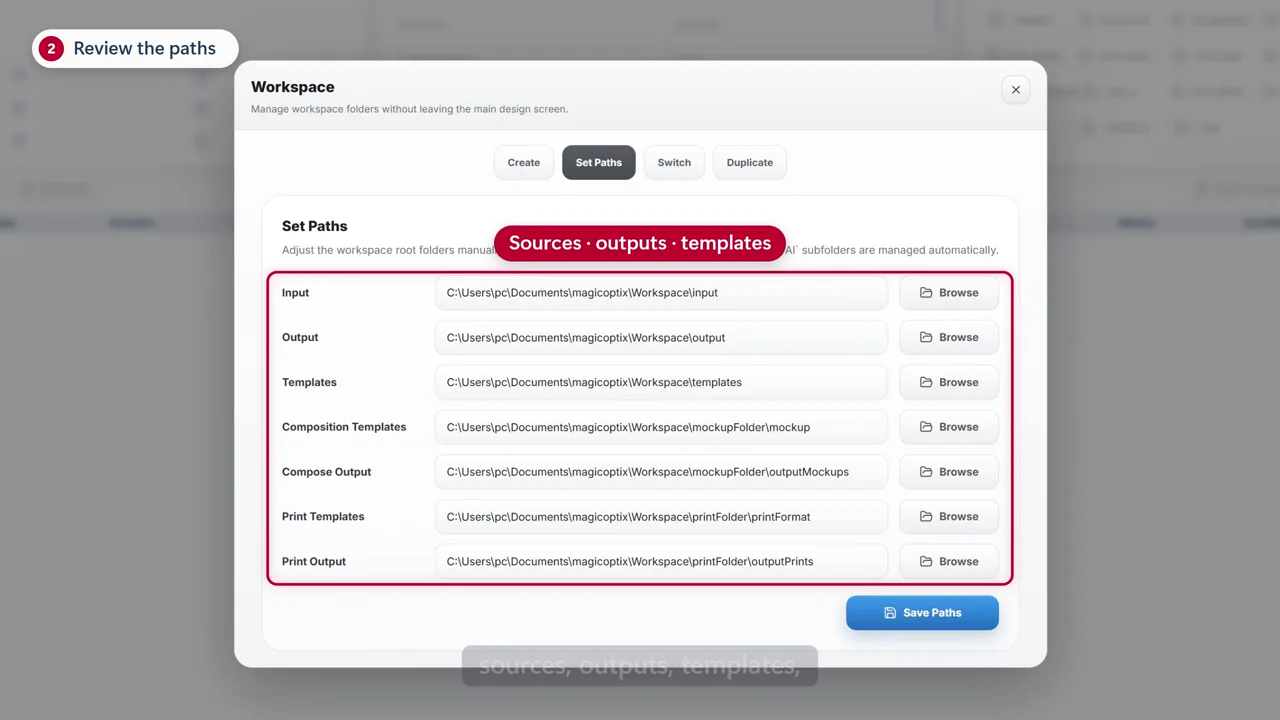
After the app reloads, open Set Paths to locate sources, outputs, templates and the Compose and Print folders.
 Enlarge ⤢
03Copy or switch projects
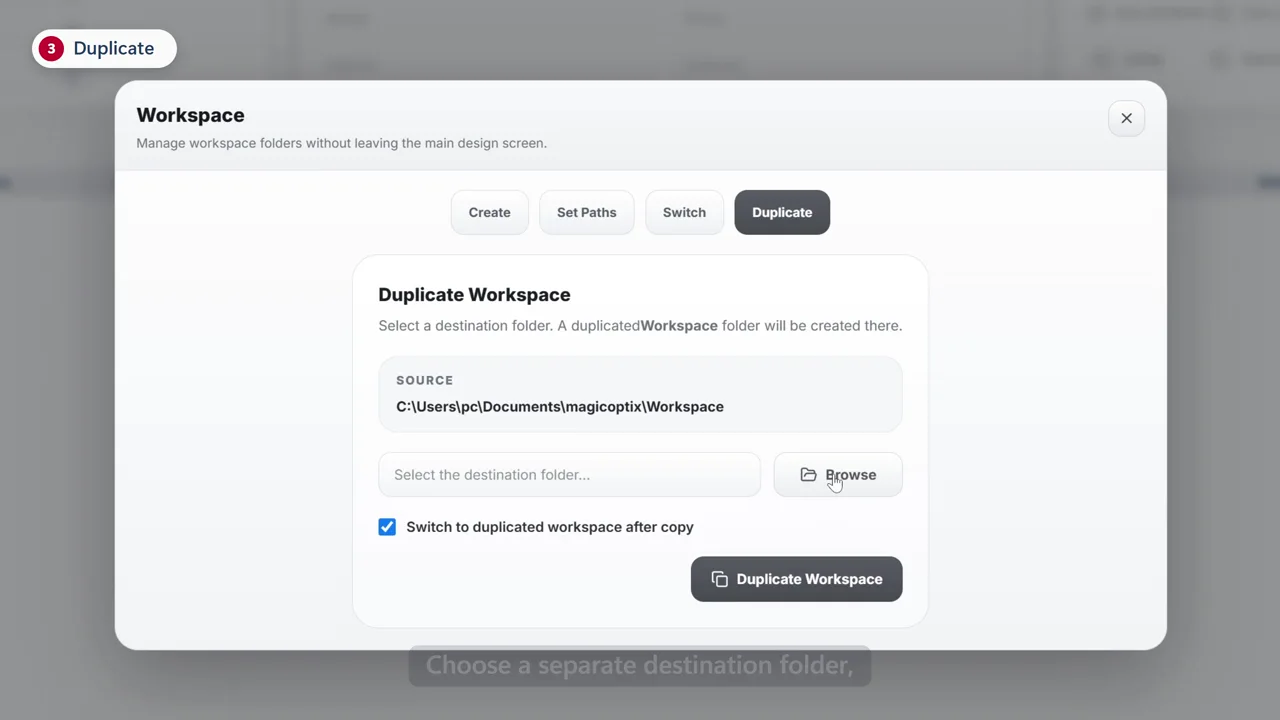
Under Duplicate, select a separate destination and click Duplicate Workspace. Check the active path. To return to the original project, select its folder under Switch and click Load Workspace.
 Enlarge ⤢